
 Back
Back

Posted by:
Oli LynchLast Updated: 01/12/2026
Posted by:
Oli LynchLast Updated: 01/12/2026
Contents
- Changes to the Amazon Fire TV Stick OS
- Can you still use Amazon Fire TV sticks for digital signage?
- The Amazon Signage Stick
- Best budget digital media players for digital signage
- How to migrate to digital signage content to a new device
- Using Fire TV Sticks for off-site presentations
- Digital signage that works with almost any media player
Ask for an AI Summary

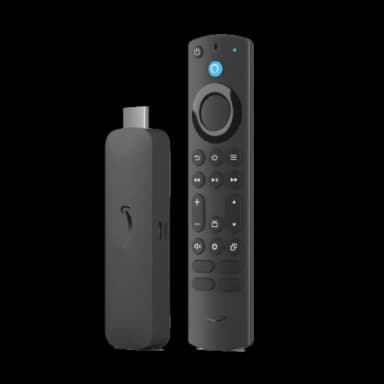
Amazon’s budget HDMI media player has been the go-to recommendation for low-cost digital signage hardware for many years. At $50 it has been one of the quickest and easiest ways to remotely create digital signage displays, from noticeboards or digital menu displays, to displaying dashboards and employee comms.
The Fire TV Stick has also had plenty of competition from Google’s Chromecast and Xiaomi’s Mi Box. But it consistently did the best job of balancing performance, affordability, and usability. However this has now all changed.
So can you still use the Amazon Fire TV stick for digital signage? Or is it time to switch to a new affordable digital signage solution?

Changes to the Amazon Fire TV Stick OS
In early 2024, Amazon began rolling out Fire OS updates that made it much harder to use Fire TV Sticks for digital signage. This has then culminated in the launch of the Amazon Signage Stick, a made for purpose digital signage media player.
These changes to Fire OS disallowed connections to the Android Debug Bridge (ADB). That meant that apps could no longer bypass the device’s default home screen when a Fire TV Stick booted up, meaning users couldn't manually clear the app’s cache or launch straight to their digital signage player.
Enabling ScreenCloud Player’s Start at boot option in the past meant that when your Fire TV Stick turned on, the first thing you’d see was whatever Playlist or Channel you’d scheduled to play on that screen. Since the ADB update, that’s no longer the case. Now, as of 2024, skippable video ads are the first thing you see when turning on the device.
After getting past the ads, you can then manually open the ScreenCloud Player, which will run uninterrupted until you turn off your Fire TV Stick or screen.
In our tests, if you turn the screen off for 20 minutes or less, and then turn it back on, the TV still showed ScreenCloud content. If the screen is off for longer than that, the first thing you’ll see when powering it back on will be the Fire OS home screen.
Can you still use Amazon Fire TV sticks for digital signage?
Yes, you can still use the Amazon Fire TV stick for digital signage.
Of course, these changes to the operation of the Fire TV sticks have obviously been a little disruptive for some. Indeed, many businesses have invested in the Amazon Fire TV stick to power their displays - meaning they're committed to the device for now.
But for those looking for a new media device to power their digital signage, the Amazon Fire TV stick is no longer the cheap yet effective option it once was.
Depending on your audience and goals, or how many screens you’re managing, manually starting the ScreenCloud Player each day might be a minor inconvenience. The other ADB-related issue is being unable to clear an app’s cache, which should only be an issue when your Fire TV Stick is disconnected from WiFi for a prolonged period.
There’s a technical workaround (although that could change soon) for these issues if you’re comfortable using a command-line interface. However, that option only works because Fire OS is currently built on top of the Android operating system.
There are many alternative media players to power your digital signage content, running a range of operating systems from Android to Raspberry Pi. We'll look at some of the best options, but first we'll start with Amazon's own replacement for their range of Fire sticks.
The Amazon Signage Stick
The entire purpose of phasing out the Fire TV stick has been to bring in the new made for purpose digital signage player from Amazon, the Amazon Signage Stick.
Coming pre-loaded with digital signage software including ScreenCloud, the Signage Stick is Amazon's first focused foray into the world of digital signage.
The Signage Stick is around twice the price of the Fire TV Stick. But in terms of form it looks exactly the same, with only subtle changes to the facade, and a remote also included.
The Signage Stick still connects to your HDMI port and can still connect to ScreenCloud easily. But now there is no need to wade through that launch screen before you're able to display content on your screens, making it easier to launch your signage display remotely.
Find out more: Amazon Signage Stick
As of early 2025, the Signage Stick is still only available in the US and North America, although we expect a UK, Europe and worldwide roll out soon. However, at $99, it is twice the price of the Fire Stick which makes it a less cost effective choice for some small and medium businesses looking for a cheap digital signage player.
If you're looking to break away from Amazon's ecosystem, what are the alternatives?
Best budget digital media players for digital signage
Keep in mind that almost any device that is powerful enough to stream content from the cloud and is also $60 or less carries a significant risk of another ADB-style rug pull. At these price points, often barely more than what it costs to produce these types of devices, manufacturers don’t love the idea of users skipping past their advertisements and signup offers.
So, while the options below are better for digital signage, this could change soon.
Best overall: Pixi
With it's compact and lightweight form and it's made for digital signage experience, the Pixi from ScreenCloud is one of the best options for SMBs looking to power their signage network. The setup process is fast and simple, meaning you can setup your digital signage in minutes.
Pixi also offers pro level features such as remote device management, enterprise-grade security and one of the most powerful tech specifications on the market. And, it's one of the most affordable devices on this list too - coming in at $65!
Amazon TV direct competior: Google Chromecast
Their setup, size, specs, and price are very similar to Fire TV Stick specs. Google TV lets you enable ScreenCloud Player’s Start at boot option. As an added bonus, Google Assistant is much easier to set up automations with third-party services than Alexa.
Most affordable option: Onn 4k
Often coming in under $20, this is an unbelievably cheap option. Chris Welch’s in-depth review for The Verge claims Onn’s device is “largely similar to Google’s Chromecast with Google TV 4K in terms of performance and its day-to-day user experience…and without any blatant Walmart advertising.”
Best for extra ports: Xiamoi Mi Box 5
While this is the most expensive of the bunch ( around $60), Xiaomi’s device comes with almost everything the Chromecast does, plus an auxiliary speaker output and an ethernet-ready USB port that handles local video playback.
Best for enterprise: Station P1 Pro
If you’re willing to go just a bit out of the low-cost range, the purpose-built Station P1 Pro from ScreenCloud will never suffer from unexpected software updates. It is powerful, low-profile, and optimized for enterprise-level digital signage with remote device management and 32 GB of onboard storage.
Regardless of what device you’re switching to, transferring your content shouldn’t take longer than a couple of minutes.
How to migrate to digital signage content to a new device
Transferring media, dashboards, Playlists, and Channels from one media player to another should be quick and easy in any cloud-based digital signage app. In ScreenCloud, you have two main options.
First, if you’re migrating away from one or two screens playing a single Playlist, app, or dashboard, transferring everything manually only takes a few clicks.

From the Screens tab, click the three-dot menu next to the screen you’re removing and select Deactivate.
Then, to add your new screen: Click the Now Playing dropdown, followed by Browse more, and search for whatever content is listed under Now Playing on your old screen.
The other option is ScreenCloud’s Replace Device feature.
First, connect your replacement digital media player, install and open the ScreenCloud app, but don’t type in the pairing code to add the screen to your account yet.
Instead, go to the Screens tab in your ScreenCloud dashboard, click the three-dot menu next to the outgoing Fire TV Stick screen, and select Replace Device.
Enter the pairing code for your new screen and all of your content will be transferred from the Fire TV Stick.
But before you deactivate or delete your Fire TV Stick screens, consider keeping them around for some valuable niche digital signage use cases.
Using Fire TV Sticks for off-site presentations
For most people, not being able to boot straight into the ScreenCloud Player will be too inconvenient to keep using a Fire TV Stick for digital signage in a fixed, permanent location. There are, however, other valuable ways to keep using them for business-related purposes.
ScreenCloud will continue attempting to push the same content to your Fire Stick, regardless of whether or not it’s on.
So, if you unplug a Fire TV Stick from a screen in your office and plug it into a screen in a different location, all of your playlists, channels, and schedules will follow you (as long as your Fire TV Stick can connect to WiFi). This makes Amazon’s digital media players a decent option for mobile, roving meetings and presentations.
While you could load a USB drive with static, offline content or plug your laptop into someone else’s screen, a Fire TV Stick is easier to set up and displays real-time app updates and data synced from the cloud.
You might give depreciated devices to salespeople or executives to use for:
- Presenting to prospects, current clients, or business partners
- Trade shows and expos
- Conferences and seminars
- Outdoor events or markets
- Fundraising events
You could use WiFi that is provided on location. But if there isn’t any, or you’re worried about looking unprofessional bumbling through the settings menu, there’s an easy workaround.
Before traveling, turn on a mobile WiFi hotspot on your phone and save the password to your Fire TV Stick.
Then, whenever you’re off-site, turn on your hotspot, plug the Fire TV Stick into a screen and manually open the ScreenCloud Player (pro tip: you can press the Alexa button and say “open ScreenCloud” while the TV is powered off to bypass the home screen).
It should take a matter of seconds to sync all your content. Check out our digital signage on WiFi vs 4G comparison for more details on what to expect in terms of speed.
Digital signage that works with almost any media player
ScreenCloud is both the most powerful and the simplest, most straightforward option for casting your business content to the screens you already have. Amazon’s ADB updates were certainly a setback, but you still have plenty of options.
If you have Fire Sticks then you can still connect ScreenCloud to display your choice of content, from simple menu boards, announcements, videos or any other dynamic content.
ScreenCloud also works with other operating systems such as Android, Tizen OS, Mac OS and many more.
Discover the most powerful digital signage software solution, offering unrivalled support, best in class security and a premium dashboard experience.
Try ScreenCloud for free for 14 days, or schedule a demo here.